Welcome to the Kiarah Studios Photographer Dashboard

This guide will help you understand how to use the Photographer Dashboard to manage Check-In/Out and upload session photos/documents.

Step 1: Access Your Dashboard

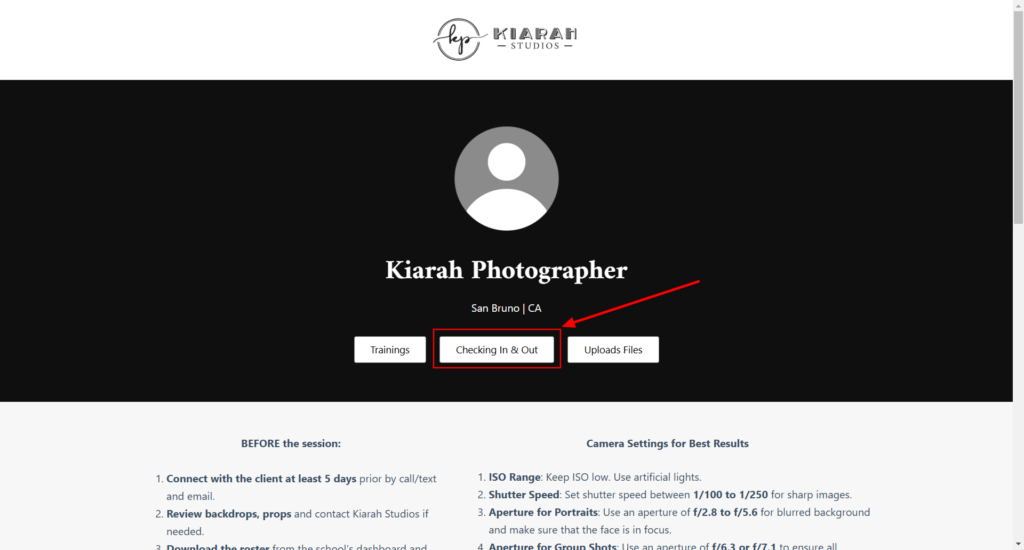
Open Your Personalized Link

  • Use the dashboard link provided to you via email.
  • Bookmark this link in your browser for quick and secure access.
  • Important: This link is unique to you. Do not share it with others.
Kiarah Photographer San Bruno Ca Photographer Dashboard – Kiarah Studios 01 24 2025 02 41 Pm

Step 2: Check-In/Out Process

Accessing the Check-In/Out Section

  • Click on the “Check-In/Out” button from your dashboard.
  • A form will appear where you need to fill out the following:
    • Client Name: Enter the name of the client for this session.
    • Check-In/Out: Select whether you are starting or ending the session.
Kiarah Photographer San Bruno Ca Photographer Dashboard – Kiarah Studios 01 24 2025 02 43 Pm
Kiarah Photographer San Bruno Ca Photographer Dashboard – Kiarah Studios 01 24 2025 02 54 Pm

Checking in

  • After selecting Check-In, you’ll see a photography checklist.
  • Complete the checklist by ticking all required boxes before submitting the form.
Kiarah Photographer San Bruno Ca Photographer Dashboard – Kiarah Studios 01 24 2025 02 56 Pm

Checking out

  • After selecting Check-Out, you’ll see a photography checklist.
  • Complete the checklist by ticking all required boxes before submitting the form.
Kiarah Photographer San Bruno Ca Photographer Dashboard – Kiarah Studios 01 24 2025 02 59 Pm

Confirmation

  • After successfully submitting the form, you will receive a confirmation email for both Check-In and Check-Out.
  • Always ensure that the Client Name matches for both forms.

Step 3: Upload Photos and Documents

Accessing the Upload Form

  • Click on the “Upload Files” button on your dashboard.
Kiarah Photographer San Bruno Ca Photographer Dashboard – Kiarah Studios 01 24 2025 03 06 Pm

Upload Documents and Photos

  • Enter the Client Name used during Check-In/Out.

Additional Tips for Uploading

  • Patience is key: Large file uploads may take time. Wait for the upload progress to finish.
  • If any interruptions occur, restart the upload process from where it left off.
  • Always double-check the total number of files uploaded to avoid discrepancies.

Mobile Navigation Tips

  • Tap the buttons under your name to access Check-In/Out, Upload Files, or Trainings directly.